If you are searching for how to reset Moniepoint business PIN, then you are in the right place.
There are different reasons why someone may want to reset their Moniepoint Business PIN. Maybe you forgot your old PIN, you feel someone else knows it, or you simply want to change it for better security. Whatever the reason may be, the good news is that resetting your Moniepoint Business PIN is very simple and can be done within a few minutes.
As someone who works closely with POS businesses and digital banking solutions, I understand how frustrating it can be when you are unable to carry out transactions because of a PIN issue. Many Moniepoint agents and business owners panic whenever they cannot remember their PIN or suspect that their account security may have been compromised.
The truth is that Moniepoint has made the process easy for business owners. You do not need to visit any office before resetting your PIN. Everything can be done directly from your Moniepoint Business App.
In this guide, I will explain everything you need to know about how to reset Moniepoint business PIN, including the exact steps, possible challenges you may face, and how to solve them.
What Is a Moniepoint Business PIN?
Before going into the process, let me quickly explain what a Moniepoint Business PIN means.
A Moniepoint Business PIN is your transaction security code used to authorize transactions on your Moniepoint Business account. This PIN helps protect your money and business account from unauthorized access.
Anytime you want to perform sensitive actions such as transfers or important account activities, you may be required to enter your PIN.
This is why it is very important to use a PIN you can remember but difficult for other people to guess.
Why You May Want to Reset Your Moniepoint Business PIN
There are several reasons why people search for how to reset Moniepoint business PIN.
Here are some common reasons:
1. You Forgot Your PIN
This is one of the biggest reasons. Sometimes people create a PIN and later forget it, especially when they rarely log in or use the account for transactions.
2. You Want Better Security
Maybe you suspect someone already knows your PIN. Changing it immediately can help secure your account and protect your business funds.
3. You Shared Your Device With Someone
If another person had access to your phone or Moniepoint Business App, changing your PIN may be the safest option.
4. You Want a Stronger PIN
Some users initially use simple numbers that are easy to guess. Later, they decide to switch to a more secure PIN combination.
No matter your reason, Moniepoint allows users to reset or change their transaction PIN without stress.
Requirements Before You Reset Your Moniepoint Business PIN
Before you begin the process, make sure you have the following:
- Access to your Moniepoint Business App
- Your login username and password
- Your registered phone number linked to the account
- Access to OTP messages
- Stable internet connection
These things are important because Moniepoint will send a one-time password (OTP) to verify that you are the real account owner.
How To Reset Moniepoint Business PIN (Step-by-Step Guide)
Now let us go straight to the main reason you are here.
Follow these simple steps carefully to reset your Moniepoint Business PIN.
Step 1: Launch Your Moniepoint Business App
The first thing to do is open your Moniepoint Business App on your mobile phone.
Make sure you are using the official Moniepoint app connected to your business account.
Wait for the application to load completely.
Step 2: Sign In Using Your Username and Password
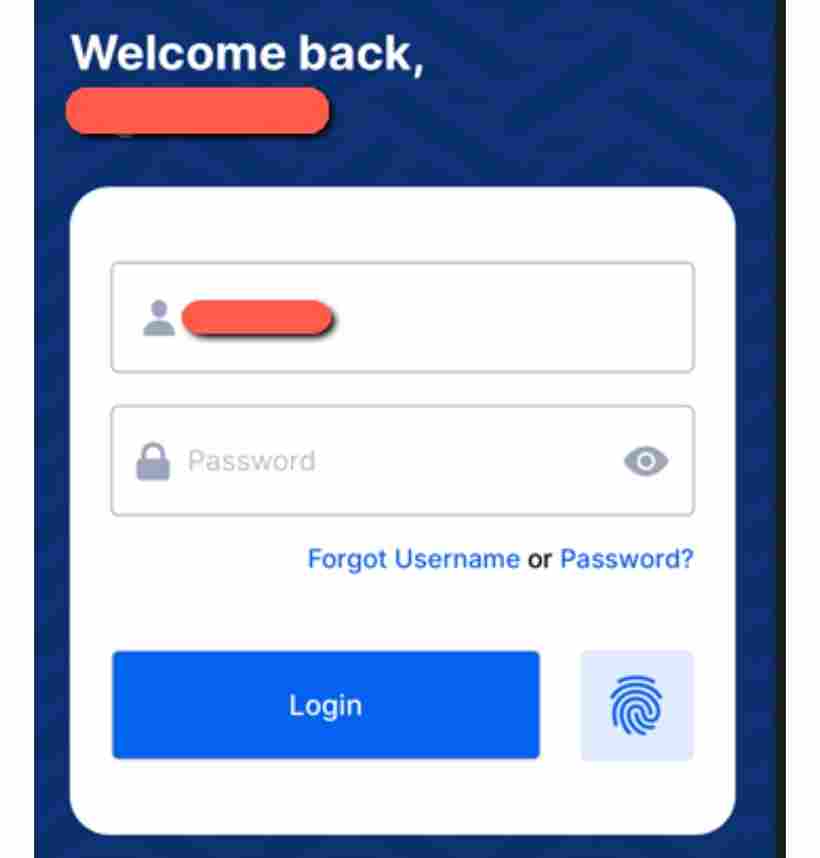
Once the app opens, log in using your current username and password.
Ensure you enter the correct login details linked to your Moniepoint Business account.
If you cannot remember your login credentials, you may first need to recover your account access.
Step 3: Select Your Account
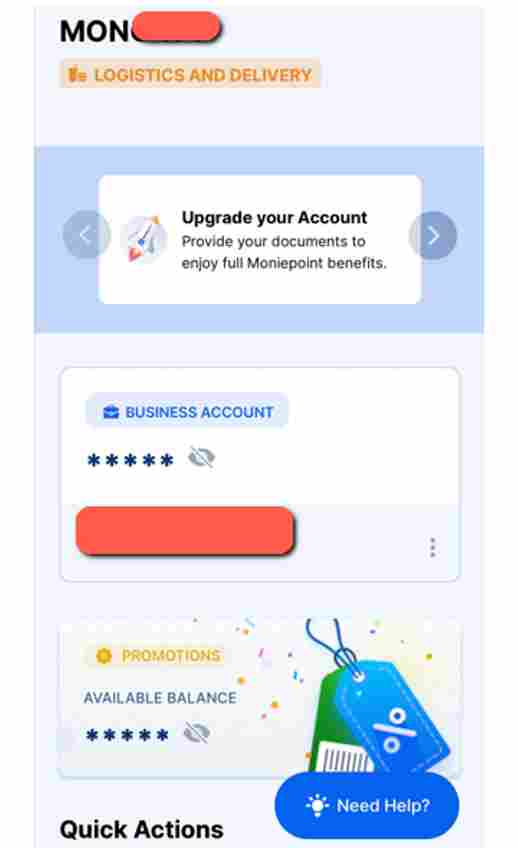
After signing in successfully, choose the account you want to manage.
This is especially useful for users who may have multiple profiles linked to their Moniepoint Business App.
Step 4: Click on the Three Triple Bars
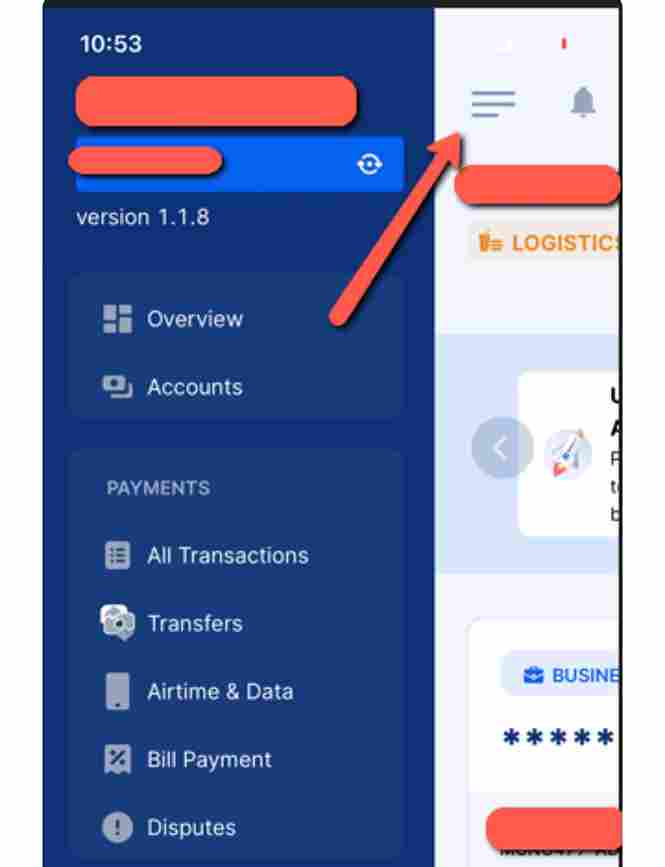
Look at the top section of the app interface.
You will see the three horizontal bars usually used as a menu icon.
Click on it to continue.
This menu gives you access to important account settings and security features.
Step 5: Click on the Settings Icon
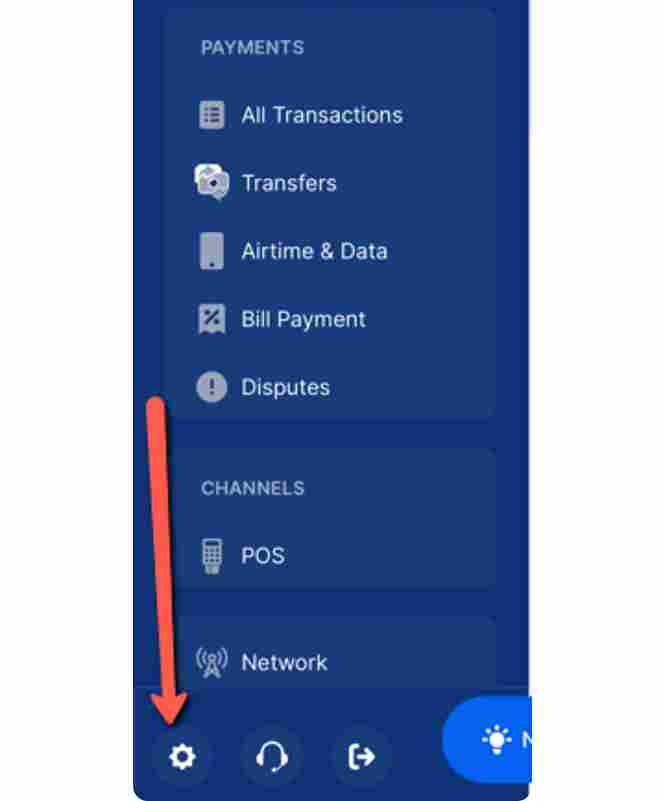
After opening the menu, locate the Settings option.
Tap on the settings icon to continue.
This section contains account preferences and security controls.
Step 6: Click on Security

Inside settings, find and click Security.
The security section contains features designed to help protect your Moniepoint account from unauthorized access.
You will also find PIN management options there.
Step 7: Click on Reset Transaction PIN
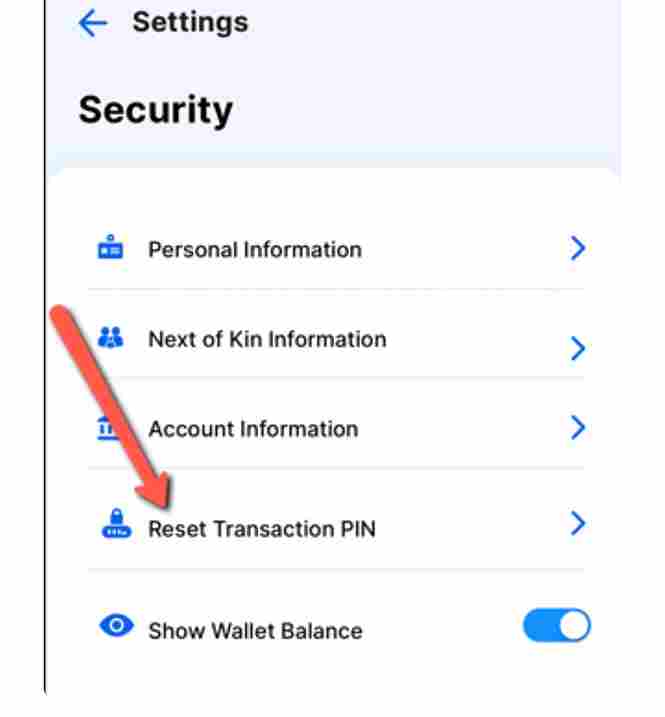
Inside the security section, select Reset Transaction PIN.
This option allows you to change your current transaction PIN to a new one.
At this stage, Moniepoint will request verification to confirm that you are the actual owner of the account.
Step 8: Enter Your Current PIN and Create a New PIN

Now, enter your current transaction PIN.
After that, type in your new desired PIN.
Then confirm the new PIN by entering it again.
Make sure you choose a PIN that is:
- Easy for you to remember
- Difficult for others to guess
- Not your birthday or simple numbers like 1111 or 1234
Once your old and new PIN have been entered correctly, the Change PIN button will become active.
Step 9: Click on Change PIN
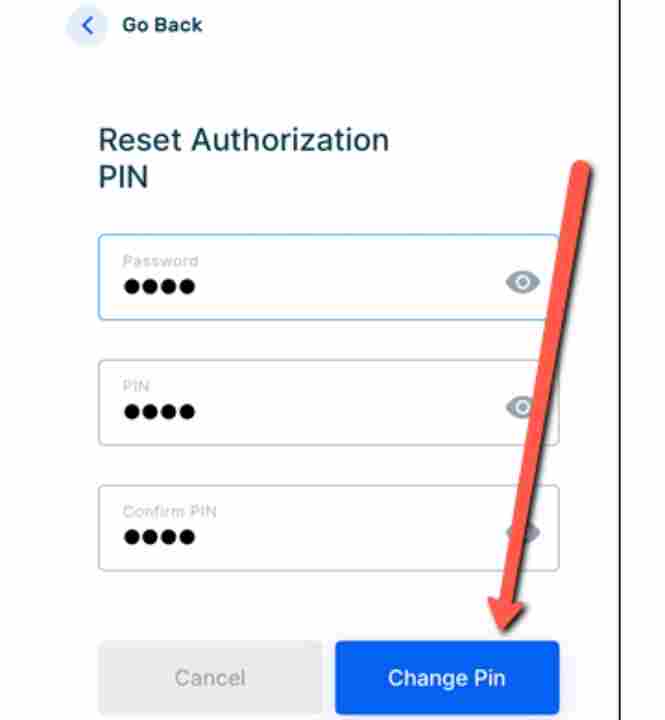
Once the button becomes enabled, click on Change PIN.
Immediately after this, Moniepoint will send an OTP code to your registered phone number.
This is an extra layer of security to ensure that only the rightful account owner can complete the PIN reset process.
Step 10: Enter the OTP Sent to Your Phone Number
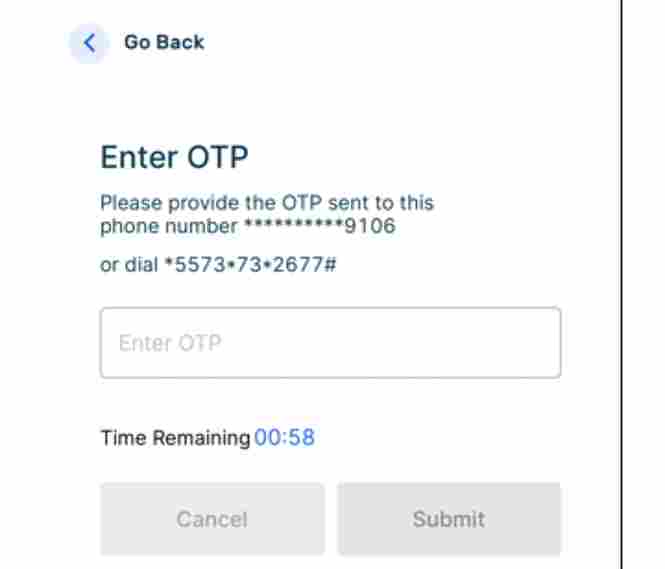
Check your SMS inbox for the OTP sent by Moniepoint.
The OTP is usually a 6-digit code and is only valid for about 30 seconds after receiving it.
Enter the code correctly.
Try not to delay too much because the code may expire quickly.
If the OTP expires, simply request another one.
Step 11: Click Submit
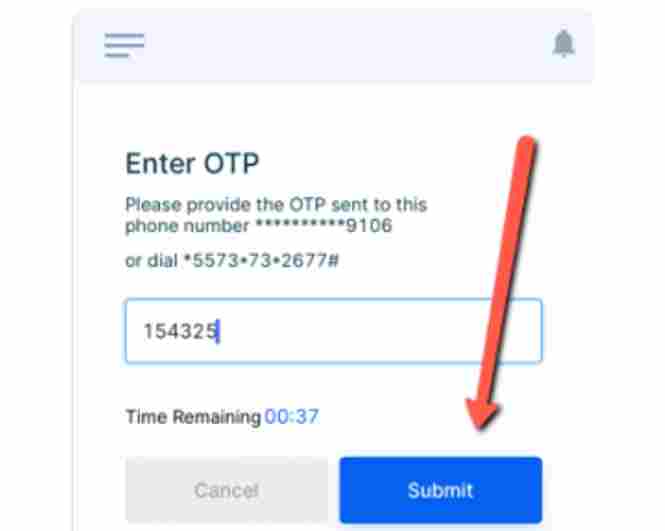
After entering the OTP successfully, click on Submit.
Congratulations.
Your Moniepoint Business PIN will now be changed successfully.
You can immediately start using your new PIN for transactions.
What To Do If You Cannot Reset Your Moniepoint Business PIN
Sometimes, users may experience issues during the process.
If that happens, here are some things you can try.
Check Your Internet Connection
Poor internet can interrupt the process.
Ensure your mobile data or Wi-Fi connection is stable.
Confirm Your Phone Number Is Active
Since OTP verification is required, your registered number must be active and able to receive SMS messages.
Ensure You Entered the Correct Old PIN
If you mistakenly enter the wrong old PIN repeatedly, the process may fail.
Double-check your details before trying again.
Update Your Moniepoint Business App
Sometimes an outdated app version can cause issues.
Visit your app store and update the Moniepoint Business App to the latest version.
Contact Moniepoint Customer Support
If everything still fails, use the Help feature inside the app to contact support.
You can also use the in-app chat option for assistance.
In many cases, Moniepoint support helps users resolve account-related problems quickly.
Security Tips When Resetting Your Moniepoint Business PIN
As someone who works around POS businesses, I always advise business owners to take account security seriously.
Here are some important security tips:
1. Never Share Your PIN
No genuine Moniepoint staff will ask for your PIN.
Keep it private at all times.
2. Avoid Predictable Numbers
Avoid PINs like:
- 0000
- 1234
- 1111
- Your birth year
These are easy for fraudsters to guess.
3. Do Not Save Your PIN Publicly
Avoid writing your PIN where others can easily see it.
4. Change Your PIN Regularly
Changing your PIN occasionally can improve your account security.
5. Protect Your Phone
Always use phone passwords, fingerprint locks, or face unlock to secure your device.
Can I Reset My Moniepoint Business PIN Without My Phone Number?
No
You will need access to the registered phone number because Moniepoint sends an OTP for verification.
How Long Does It Take To Reset Moniepoint Business PIN?
The process usually takes less than five minutes if you have access to your app and OTP.
What Happens If I Forget My Old PIN?
If you cannot remember your current PIN, you may need to contact Moniepoint support for additional help.
Is Resetting Moniepoint Business PIN Free?
Yes
Moniepoint does not charge users for changing or resetting their business PIN.
Can I Change My PIN Anytime?
Yes.
You can change your Moniepoint Business PIN whenever you want for security reasons.
Conclusion
Knowing how to reset Moniepoint business PIN is very important for every Moniepoint business account holder.
The good thing is that Moniepoint has made the process very simple and straightforward. You can complete everything directly from the app without stress.
Just launch your app, log in, go to settings, click security, select reset transaction PIN, enter your old and new PIN, verify with OTP, and submit.
If you experience any issue, do not panic. You can always contact Moniepoint support through the help section inside the app.
For security purposes, always protect your PIN and avoid sharing it with anyone.